 Pavel Feldman
🎭 Playwright CLI


Usage | Examples | DevTools API
Playwright CLI is a CLI wrapper around the Playwright library.
Playwright CLI is built to enable shell access to popular Playwright commands such as capturing screenshots, saving as PDF. But it is also useful if you want to see what your web page would look like in WebKit (Safari) while being on Window or Linux.
Usage
Install CLI as follows:
$ npm install -D playwright-cli
Print Playwright CLI help
$ npx playwright-cli --help
Usage: playwright-cli [options] [command]

Options:
  -V, --version                          output the version number
  -b, --browser <browserType>            browser to use, one of cr, chromium, ff, firefox, wk, webkit (default: "chromium")
  --color-scheme <scheme>                emulate preferred color scheme, "light" or "dark"
  --device <deviceName>                  emulate device, for example  "iPhone 11"
  --geolocation <coordinates>            specify geolocation coordinates, for example "37.819722,-122.478611"
  --lang <language>                      specify language / locale, for example "en-GB"
  --proxy-server <proxy>                 specify proxy server, for example "http://myproxy:3128" or "socks5://myproxy:8080"
  --timezone <time zone>                 time zone to emulate, for example "Europe/Rome"
  --timeout <timeout>                    timeout for Playwright actions in milliseconds, defaults to 10000 (default: "10000")
  --user-agent <ua string>               specify user agent string
  --viewport-size <size>                 specify browser viewport size in pixels, for example "1280, 720"
  -h, --help                             display help for command

Commands:
  open [url]                             open page in browser specified via -b, --browser
  cr [url]                               open page in Chromium
  ff [url]                               open page in Firefox
  wk [url]                               open page in WebKit
  codegen [url]                          open page and generate code for user actions
  screenshot [options] <url> <filename>  capture a page screenshot
  pdf [options] <url> <filename>         save page as pdf
  help [command]                         display help for command
Examples
Open page
# Open page in Chromium
npx playwright-cli open example.com
# Open page in WebKit
npx playwright-cli wk example.com
# Emulate screen size and color scheme.
npx playwright-cli \
  --viewport-size=800,600 \
  --color-scheme=dark \
  wk twitter.com/explore
# Emulate timezone, language & location, color scheme.
# Once page opens, click the "my location" button to see geolocation in action
npx playwright-cli \
  --timezone="Europe/Rome" \
  --geolocation="41.890221,12.492348" \
  --lang="it-IT" \
  --color-scheme=dark \
  open maps.google.com
# Emulate iPhone 11.
npx playwright-cli \
  --device="iPhone 11" \
  open wikipedia.org
Screenshot
# See command help
$ npx playwright-cli screenshot --help
# Wait 3 seconds before capturing a screenshot after page loads ('load' event fires)
npx playwright-cli \
  --device="iPhone 11" \
  --color-scheme=dark \
  screenshot \
    --wait-for-timeout=3000 \
    twitter.com/explore twitter-iphone.png
# Capture a full page screenshot
npx playwright-cli screenshot --full-page en.wikipedia.org wiki-full.png
Note that PDF generation only works on Headless Chromium.
# See command help
$ npx playwright-cli pdf https://en.wikipedia.org/wiki/PDF wiki.pdf
Generate Playwright code
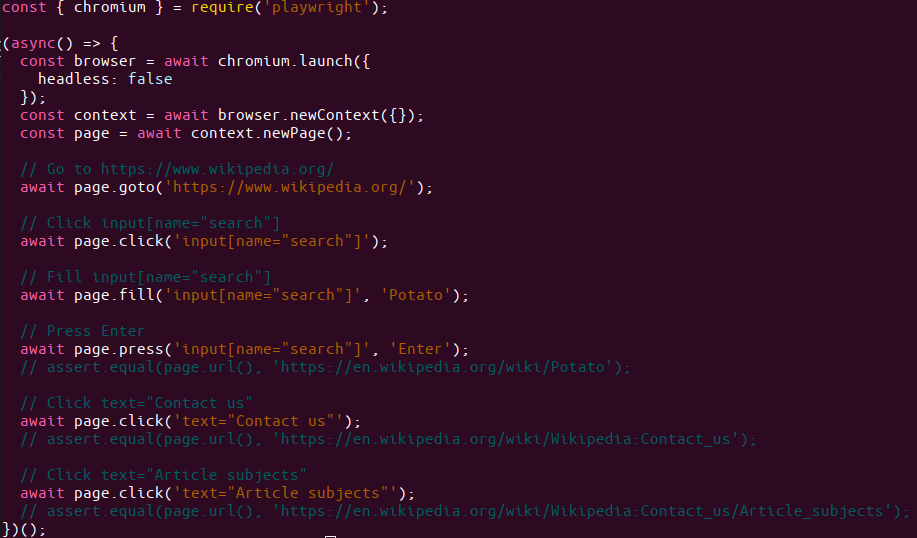
Run codegen and perform actions to one or multiple pages. Playwright will generate simple script that will capture the right pages, frames, popups, downloads, etc. It'll attempt to generate a resilient text-based selectors for user actions. This script is available right in the terminal.
# Run the generator
$ npx playwright-cli codegen wikipedia.org
DevTools API
You can use following API inside the Dev Tools console of the respective browser:
playwright.$(selector)
Query Playwright selector, using the actual Playwright query engine, for example:
> playwright.$('.auth-form >> text=Log in');

<button>Log in</button>
playwright.$$(selector)
Same as playwright.$, but returns all matching elements.
> playwright.$$('li >> text=John')

> [<li>, <li>, <li>, <li>]
playwright.inspect(selector)
Reveal element in the Elements panel (if DevTools of the respective browser support that).
> playwright.inspect('text=Log in')

<button>Log in</button>
playwright.selector(element)
Generates selector for the given element:
> playwright.selector($0)

"div[id="glow-ingress-block"] >> text=/.*Hello.*/"
Note that opening WebKit Web Inspector disconnects Playwright from the browser, so once it is open, code generation is no longer happening.